Frunk.tv for Android
Frunk.tv is also an app for Android TV and Google TV, Fire TV, phones and tablets: TV with the remote and its programme guide, radio playing in the background or in Android Auto, and your own IPTV lists. It is free and has no ads.
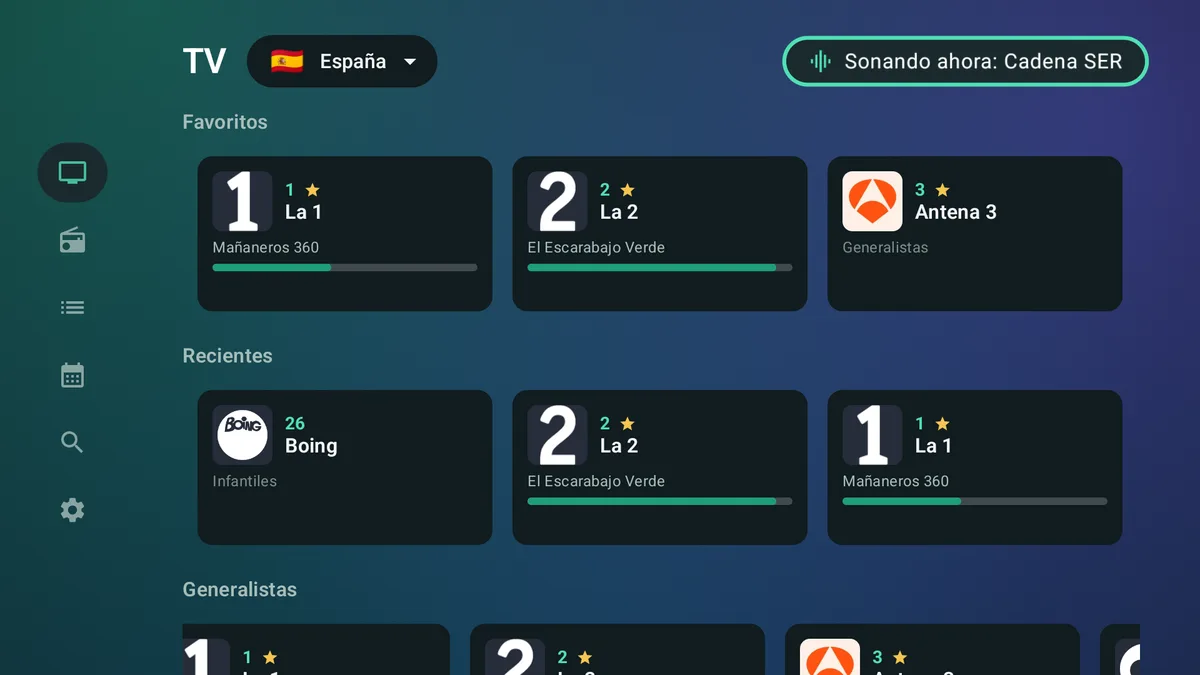
What it does
- Television: your country's free-to-air channels, zapped with the TV's remote, with the guide of what is on now and next, and your favourites.
- Radio: your country's stations and music by genre, which keep playing with the screen off or in another app, and in the car with Android Auto.
- IPTV: your own M3U or Xtream Codes list, kept on the device only. A phone can hand a list to the TV with a QR code.
- Carretera, on phones and tablets: the same map of traffic, speed cameras, chargers and routes as in the car, free, with voice alerts and "Send to car". With premium, My places, your recent destinations and your car, synced with the car. Your location, only while Carretera is open and if you give permission (privacy).
- Cine y Series: your Jellyfin, Emby or Plex server, your NAS (DLNA or a shared folder) and Frunk.tv's catalog of public-domain classics, and your AllDebrid account. Frunk.tv does not include movies or series (step by step).
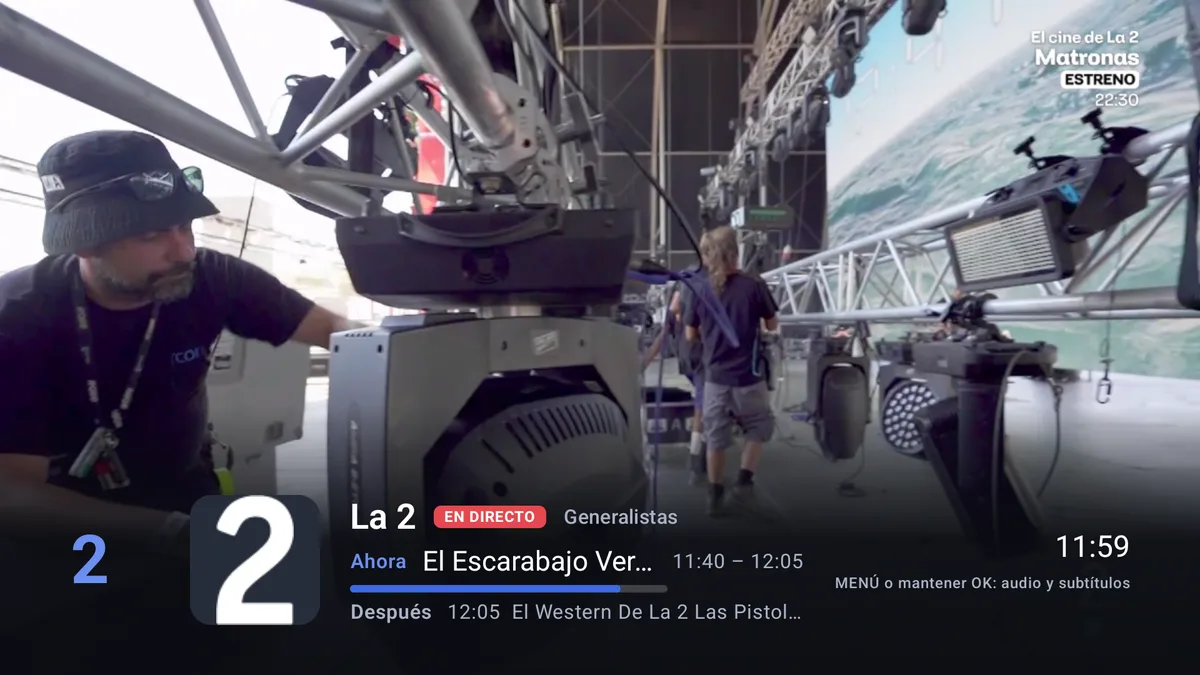
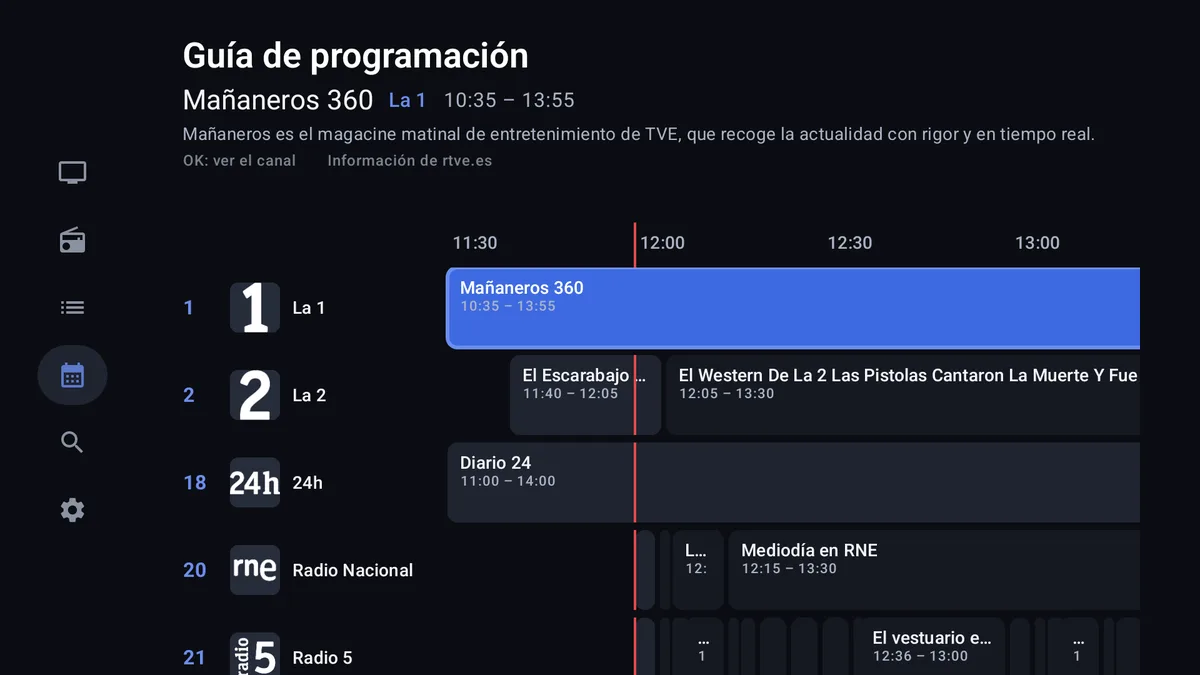
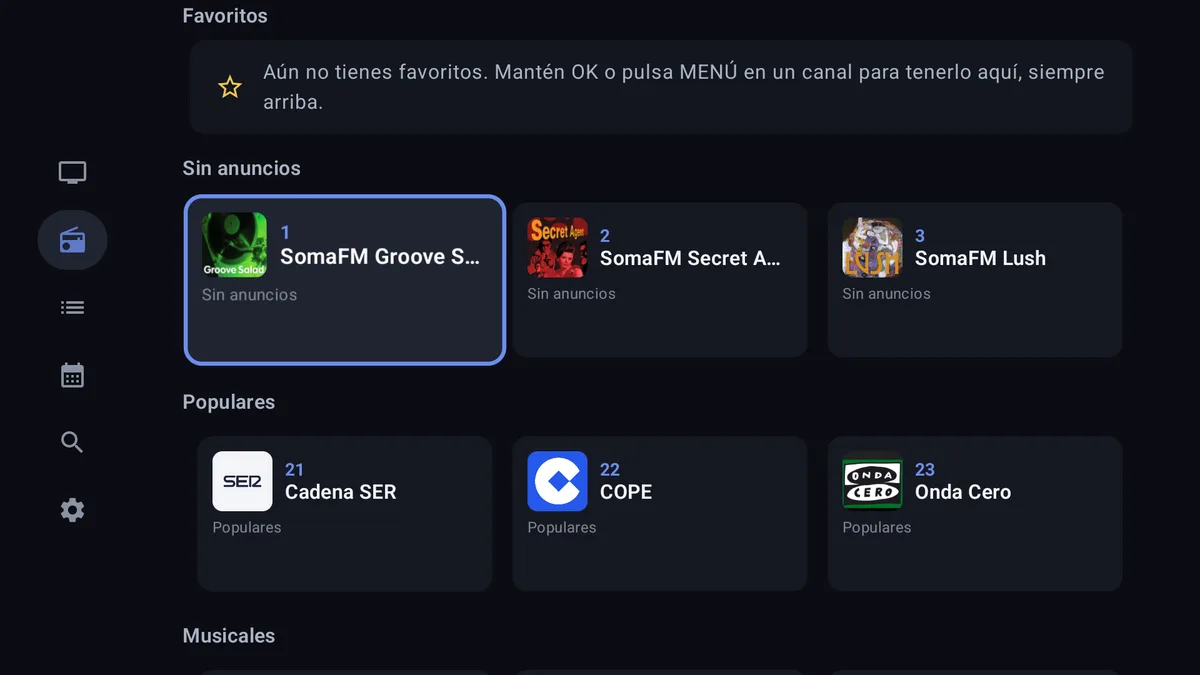
The app neither includes nor hosts any channel: it plays the official streams straight from each broadcaster's servers, and the lists you add. None of that video or audio goes through Frunk.tv.
Your list, from your phone
Typing a list's address with the remote is tedious. Better send it to the TV from your phone:
- On the TV, go to My lists → Add from your phone. A QR code appears.
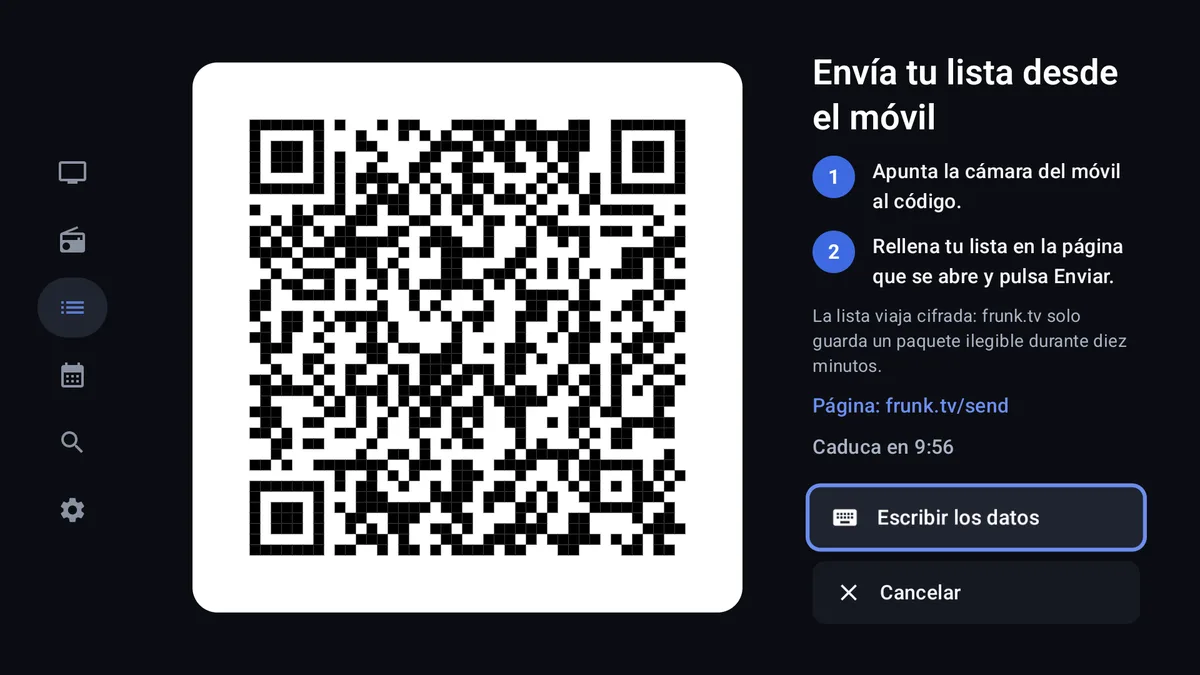
To avoid typing a list with the remote: scan the code with your phone and send it from there, encrypted. - Scan it with your phone's camera. On the page that opens, fill in your list (M3U URL, Xtream Codes or a
file) and press Send to TV.
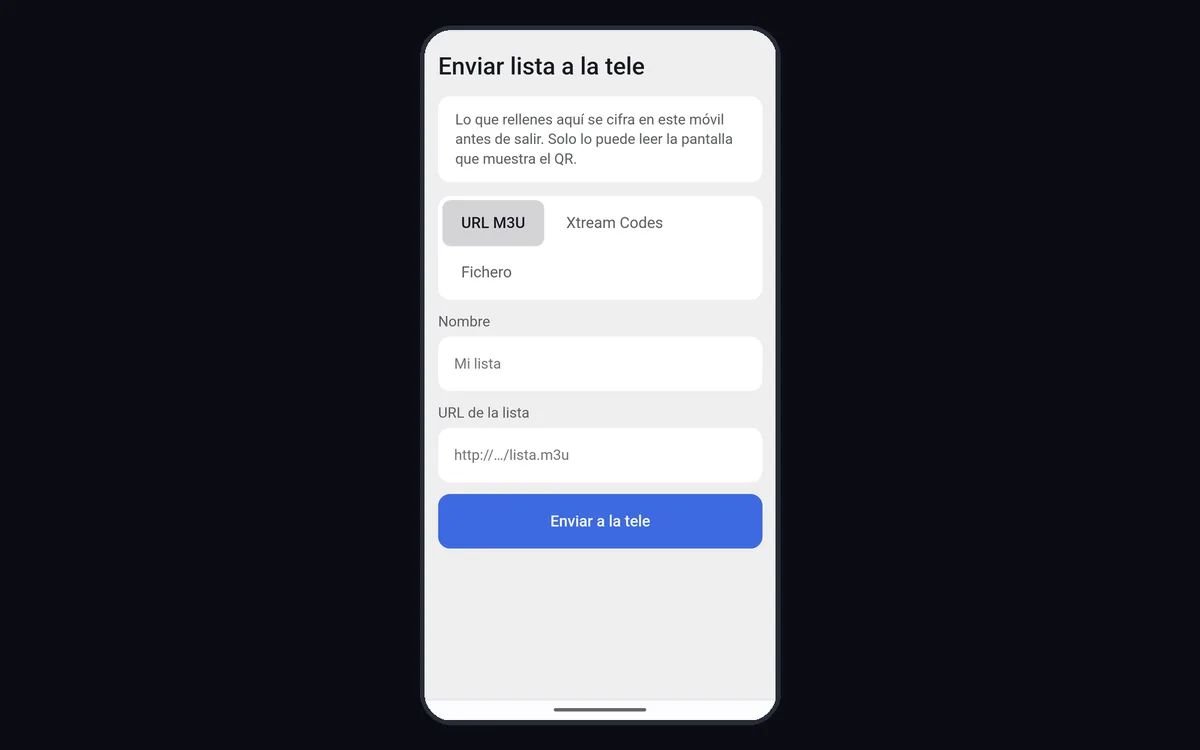
The list is encrypted on the phone before leaving: frunk.tv only keeps an unreadable package for ten minutes. - In a few seconds the TV has it, with its channels by group. It is kept on the TV only.
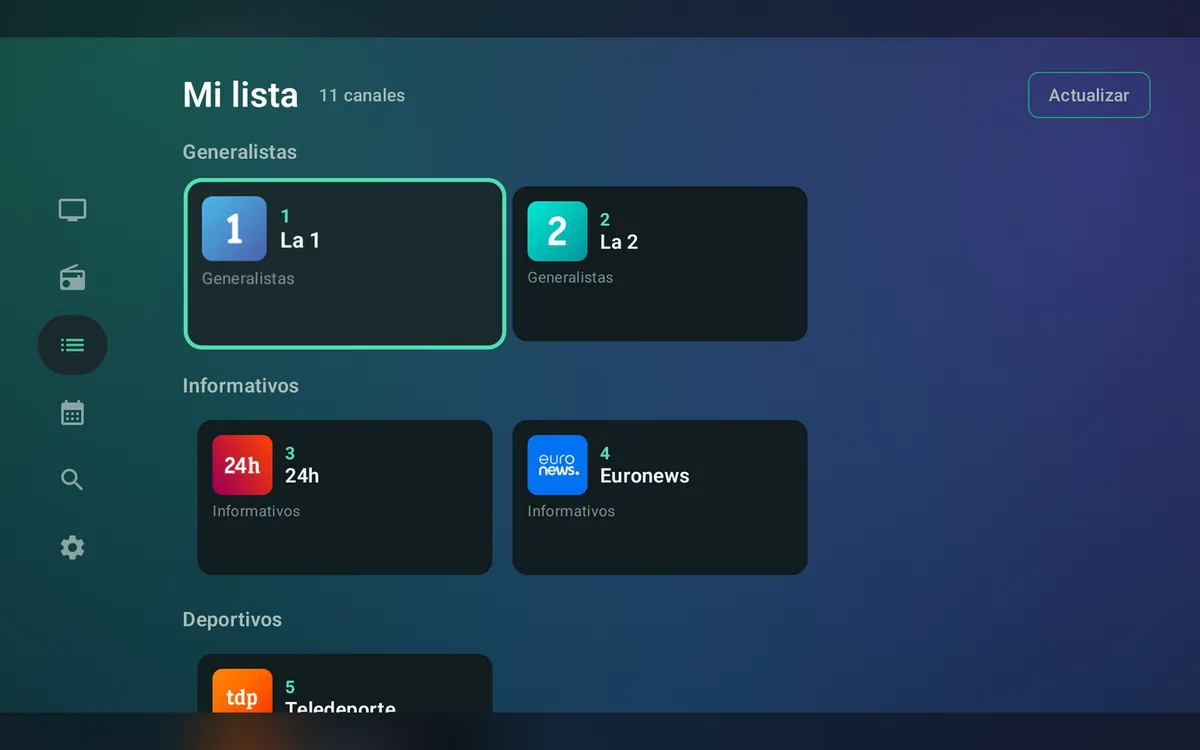
The list received in My lists. Refresh re-reads it.
On phones and tablets
The same app adapts to each screen:
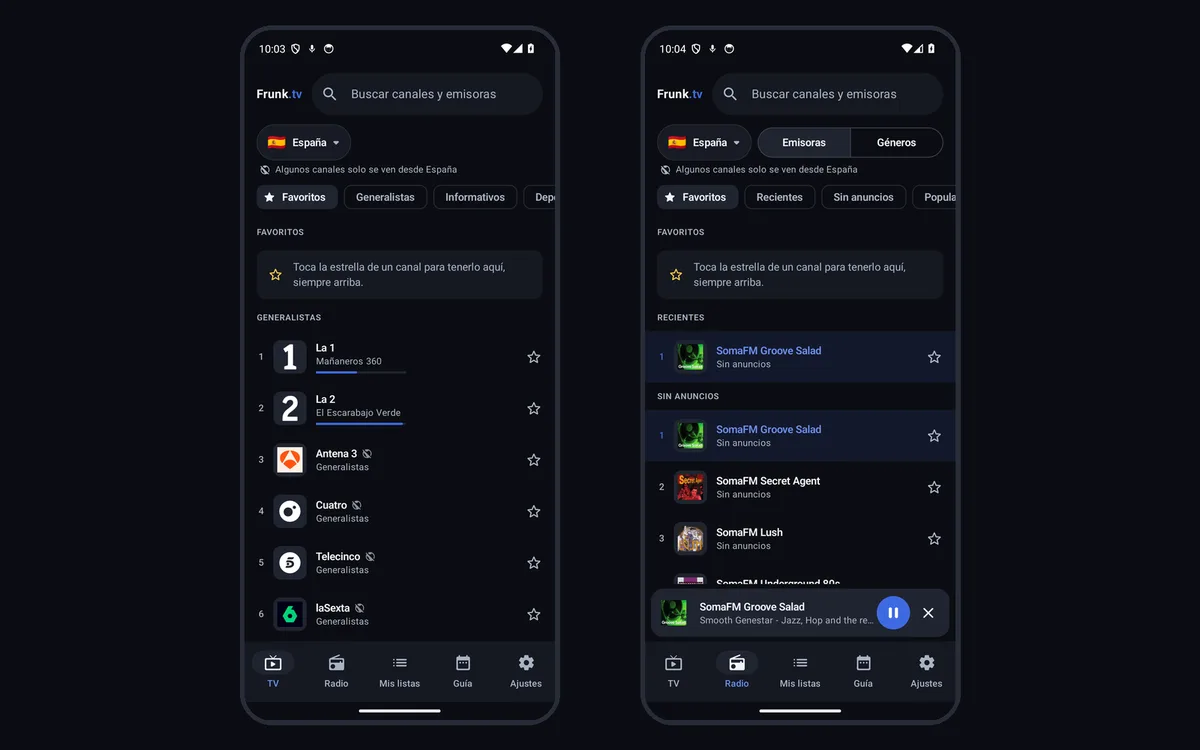
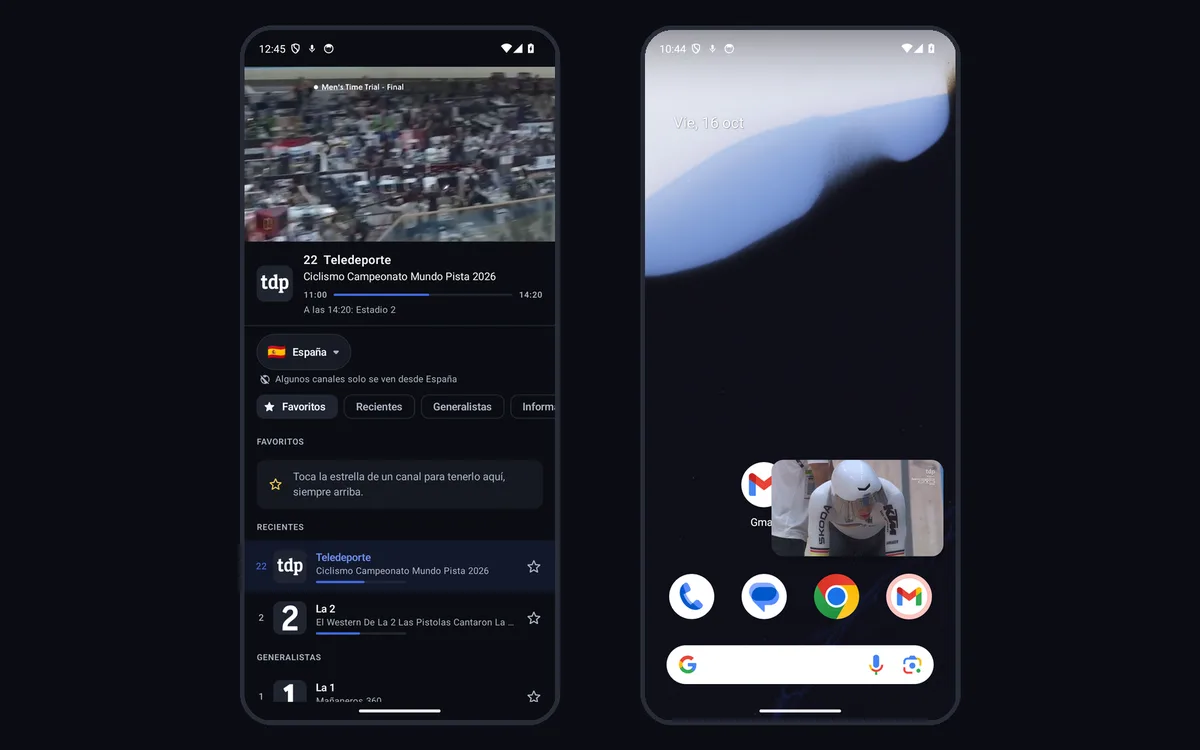
- On a phone, the channel at the top and the list below, with what is on now on each, and a bottom bar with TV, radio, your lists and the rest of the sections (Carretera, the guide, settings…); what doesn't fit, in More.
- If you leave the app with a channel playing, it continues in a floating window over whatever you are doing. The radio keeps playing with the screen off.
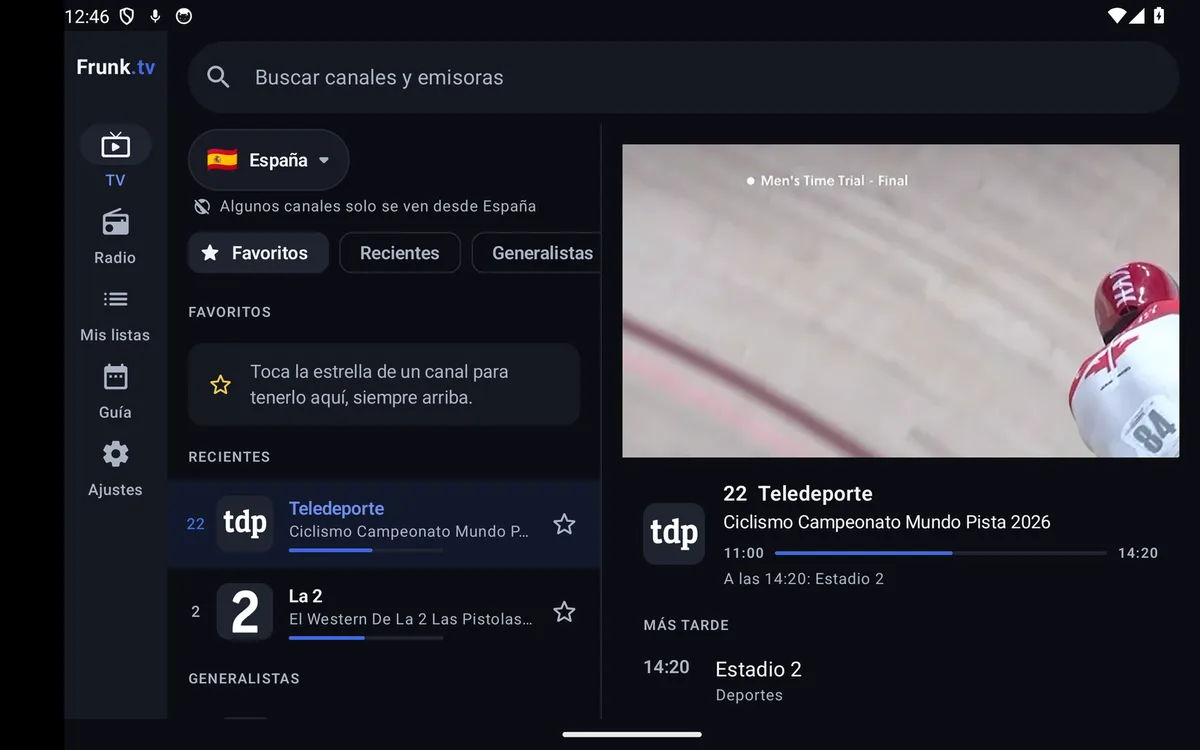
- On a tablet, the list on one side and the channel with its schedule on the other.
Download
Download Frunk.tv 0.1.1153-a1f3c6c
APK, 62.4 MB. The file's SHA-256, to check it:57591efa2a1ea5b9bdfc6387802f6268c8840343f802ed3a24568b6655383b3e
It runs on Android 7.0 or later. It is only published here: it is not on Google Play.
How to install it
On Android TV and Google TV
- On the TV, install Downloader (by AFTVnews) from Google Play.
- Open it, type frunk.tv/en/app in its address bar and press this page's download button.
- When the TV asks, let Downloader install apps: Settings → Apps → Security & restrictions → Unknown sources. If that option is missing, turn on developer mode first: Settings → System → About and press «Android TV OS build» seven times.
- Press Install. Frunk.tv shows up with the TV's other apps.
On Fire TV
- Find Downloader in the Amazon Appstore and install it.
- Let it install apps: Settings → My Fire TV → Developer options → Install unknown apps → Downloader. If you don't see Developer options, go to My Fire TV → About and press the device's name seven times.
- Open Downloader, type frunk.tv/en/app, press the download button and then Install.
On a phone or a tablet
- Open this page in the phone's browser and tap the download button.
- Open the downloaded file. Android will ask you to let the browser install unknown apps: allow it and tap Install.
Updates
The app updates itself from frunk.tv: on Wi-Fi it downloads the new version on its own, and on mobile data it asks you first. It checks each version's SHA-256 before installing it.
- The first time, Android asks you to let Frunk.tv install apps: tap Settings, turn on Allow from this source and go back.
- From then on, on Android 12 or later it installs itself when you leave the app and nothing is playing: it never cuts what you are watching or the radio. On older versions a notice asks you to install it.
- If Play Protect warns when updating, it is the same as when installing.
- Your channels, lists and settings are kept.
With Premium
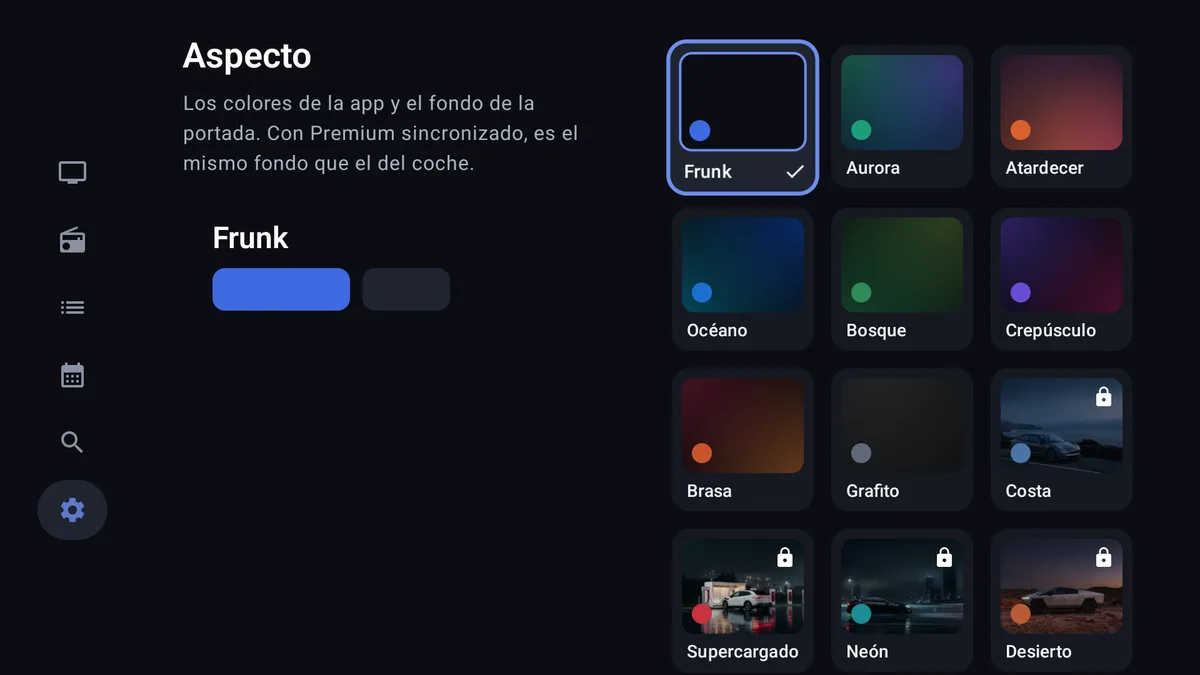
Everything above is free and needs no account. If you already have Frunk.tv Premium, the app is one of your devices: your IPTV lists, favourites and style sync with the car and your other screens, end-to-end encrypted, and image-background styles, several channels at once on the TV and the hour-by-hour guide of your IPTV lists unlock. Premium is not sold inside the app: it is bought in the Telegram bot.
Your account
The app needs no account. If you have Premium, sign in from Settings → Account: on a phone, with Sign in with Telegram; on a TV, with a QR code you scan with your phone. From there you can also delete your account.
What shows as «Available with Premium» in the app unlocks as soon as you sign in with your Premium.
Privacy and terms
The app has no ads and no analytics. What it keeps on the device and what it asks frunk.tv for is in the privacy policy; who runs it and the terms, in the legal notice.
The app includes open-source libraries: each one, with its full license, in Settings → About → View all licenses. To decode Dolby and DTS audio it uses FFmpeg, under the LGPL 2.1 or later: its code, as used in the app, is at ffmpeg-6.0.1.tar.gz, and the script used to compile it is sent to anyone who requests it at hola@frunk.tv.