Movies & Series: your movies and series in the Tesla, on your phone and on TV
Movies & Series is Frunk.tv's player for movies and series: in the Tesla browser, on your phone or computer browser, and in the Android app (phone, tablet, Android TV and Fire TV). It doesn't include movies or series: it plays the sources you add yourself, such as your Jellyfin, Emby or Plex server, your NAS or a catalog, and can use your own AllDebrid account. This guide explains, step by step and with screenshots, how to add each source, how to connect AllDebrid and what each feature does.
Where to find it
- In the car and in the browser: type frunk.tv and tap the Movies & Series tile on Home. If you don't see it, look for it in «All sections», at the bottom of Home.
- In the app, on phones or tablets: Movies, in the bottom bar. AllDebrid is under More.
- In the app, on Android TV and Fire TV: in the left menu, Movies & Series and, below it, AllDebrid.
Whatever you add is saved in that browser or that app: the car's web hub and the phone app don't share sources, so each one is added where you want to watch it.
Sources you can add
Catalogs and AllDebrid are free and with no limits. Of your servers, one is free at home; more servers, or watching them away from home, come with Cine (below).
- Frunk.tv catalogs, to try it out: public domain or open-license works from the Internet Archive, and open movies from the Blender Foundation.
- Your server Jellyfin, Emby or Plex: what you already have at home.
- Your NAS or your computer, via DLNA or as a shared folder (SMB): only in the app. A browser cannot open them.
- A catalog from its link: a catalog published by someone else, using Frunk.tv's open format. Frunk.tv doesn't control or review it: only add it if you trust the publisher.
In the car and in the browser
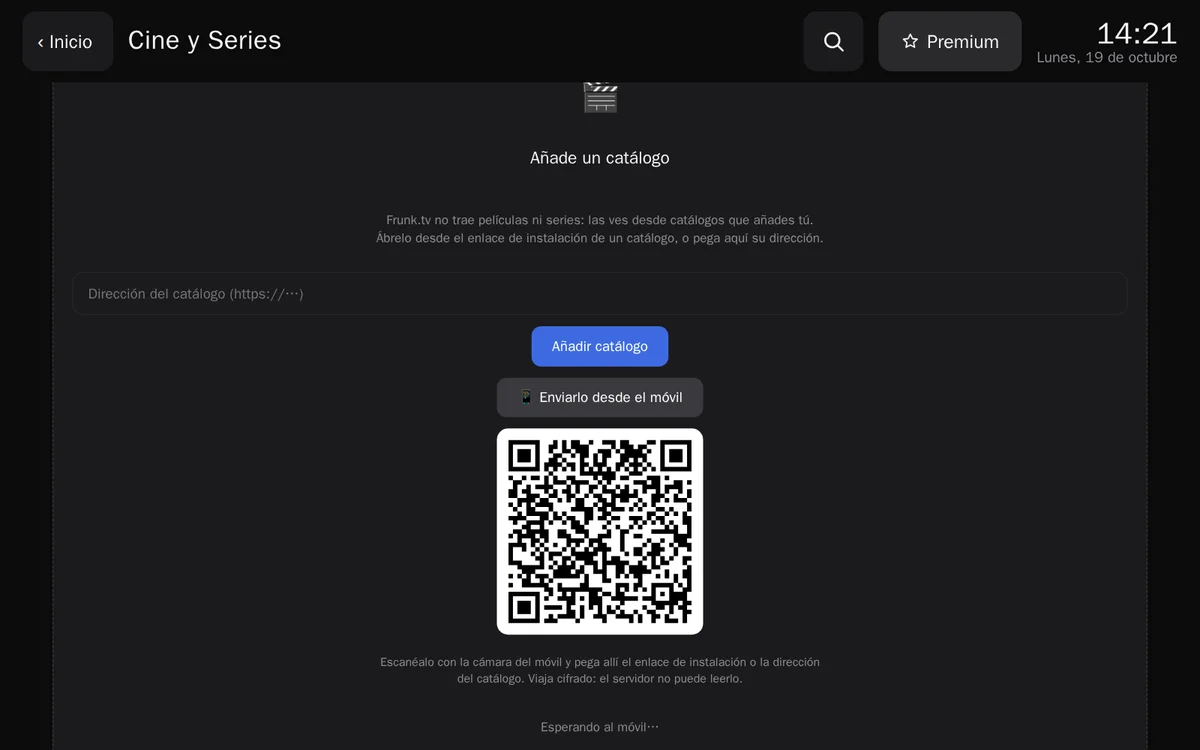
When you open it for the first time, Movies & Series shows the Add a catalog card, with all the ways to start. At the top right is the Connect AllDebrid button (below).
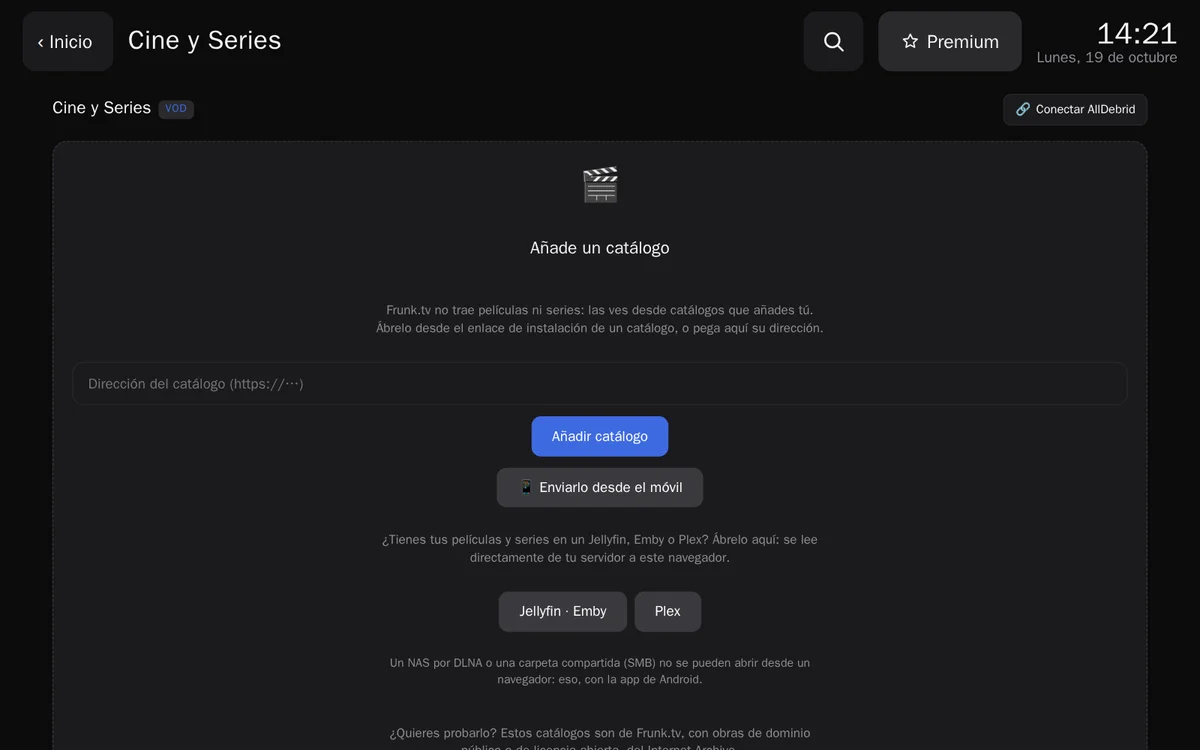
Try it with a Frunk.tv catalog
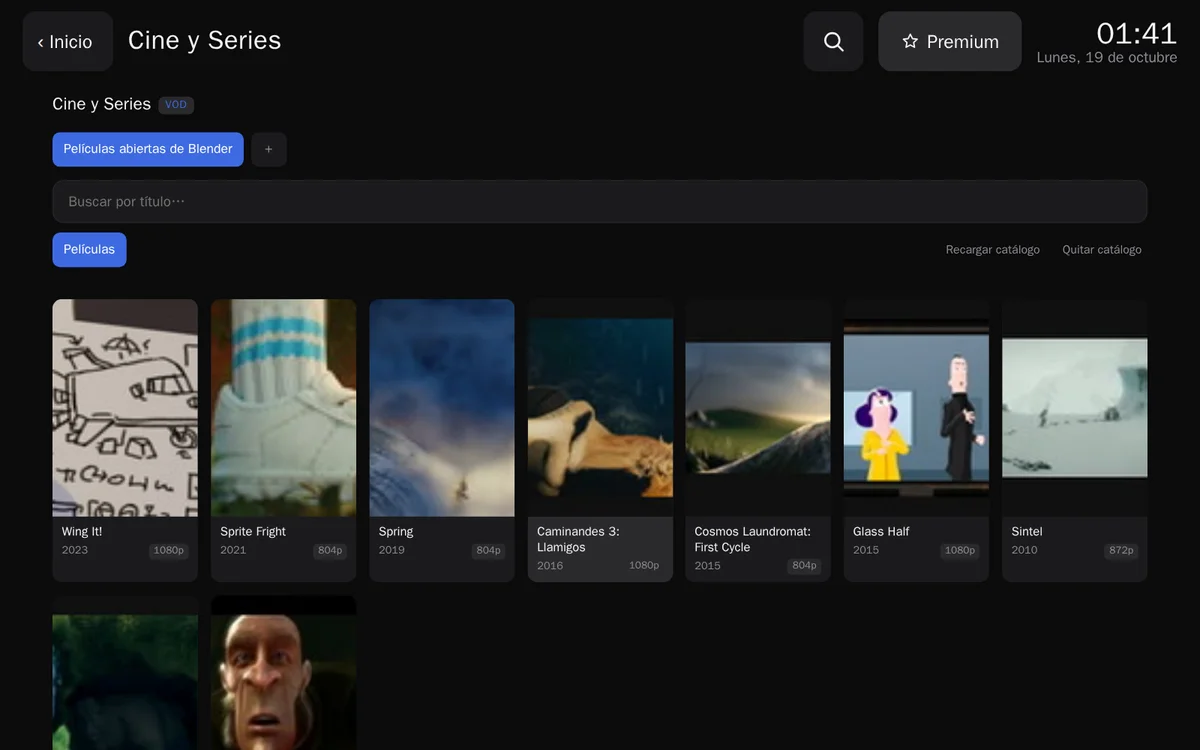
- Scroll down to «Want to try it?» and tap Add “…” on one of Frunk.tv's catalogs.
- Confirm with Add catalog and then tap Download catalog: it downloads once to the browser and searches are instant afterwards, in the car too.
- Tap a cover to open its details and press Play. The movie plays right there, above its links.
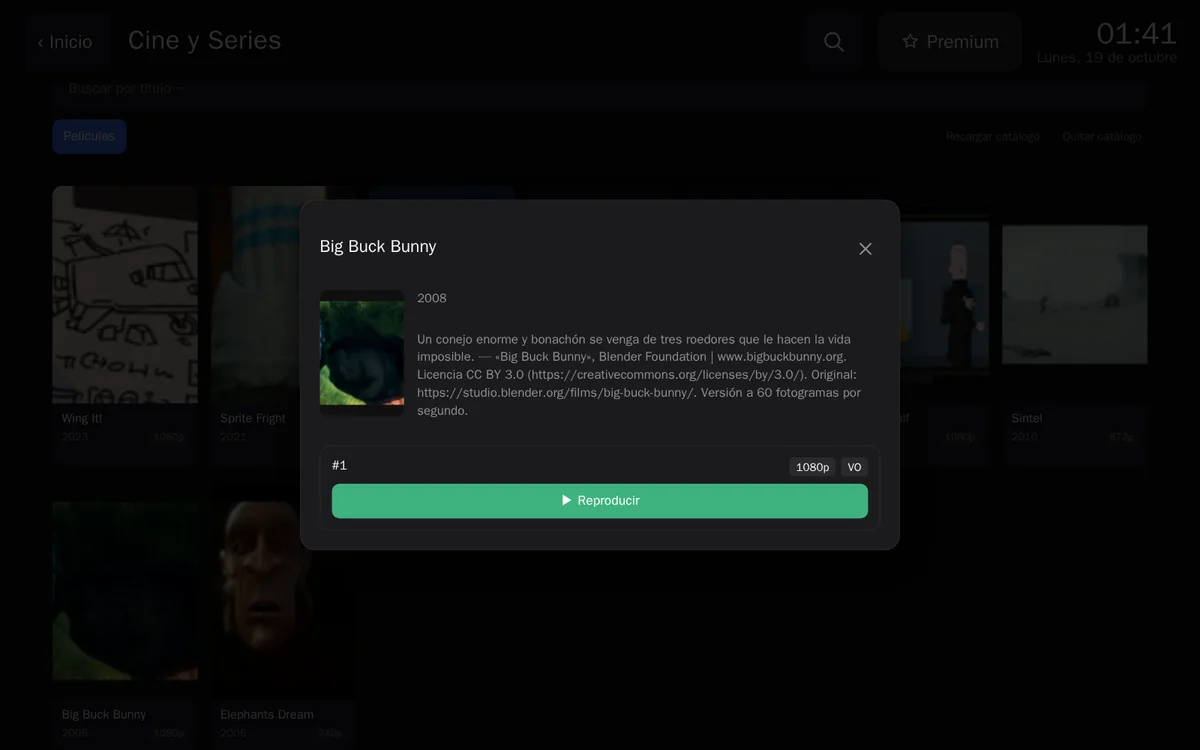
If you leave a movie or episode halfway through, Movies & Series remembers where: it appears in Continue watching, above the grid, and its button becomes Continue watching. When an episode ends, Next opens the next one. If a link isn't working, it automatically tries the next one.
Your Jellyfin, Emby or Plex
- Jellyfin or Emby: tap Jellyfin · Emby and enter your server address via
https (for example,
https://jellyfin.example.com), your username and your password. The password goes only to your server; this browser stores an access key, not the password. - Plex: tap Plex. Open plex.tv/link on your phone (the QR leads there), sign in with your Plex account and enter the code shown on the screen. If you have several servers, choose one.
Then, Add server and Read library: Frunk.tv reads your library list directly from your server and saves it in the browser. Covers and videos arrive from your server when you request them; nothing passes through Frunk.tv's server. If you change anything on your server, «There are changes on your server» appears with Read again.
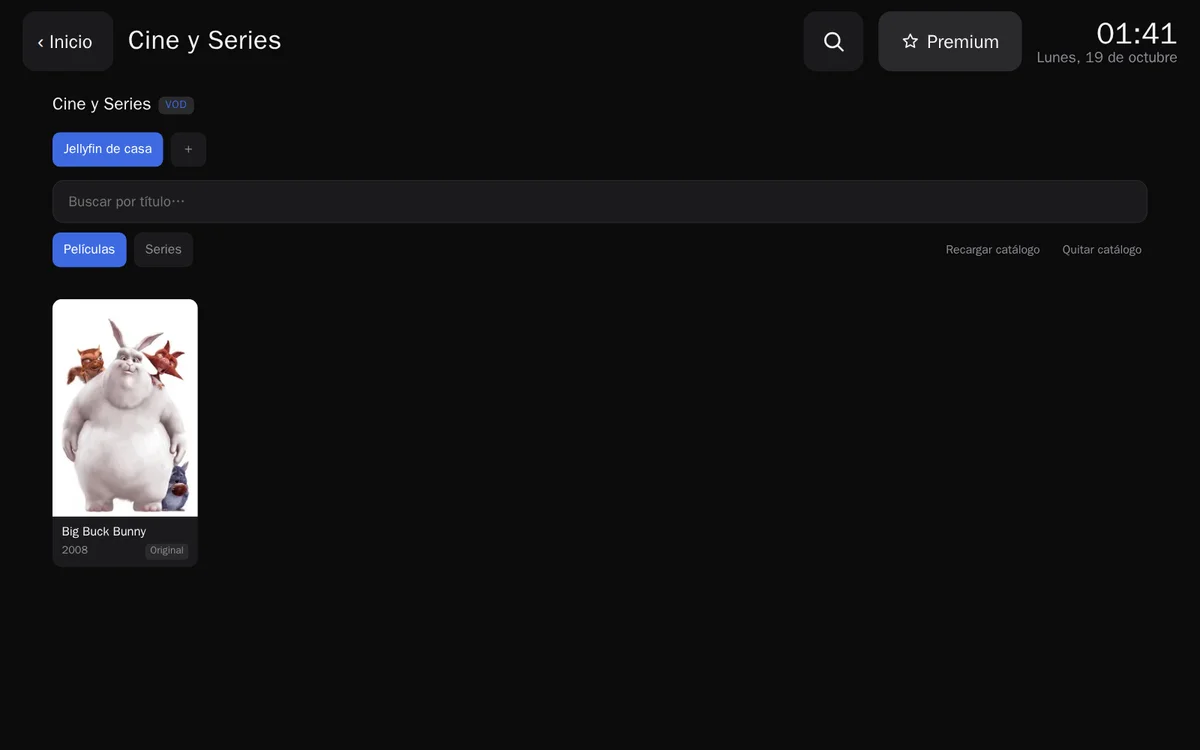
In the car, the server must be reachable via https from the internet (the car is not on your home Wi-Fi): with a domain and a reverse proxy, or with Tailscale Funnel or a Cloudflare tunnel, for example. Watching it in the car comes with Cine.
A catalog from its link
Open the catalog's install link in the browser, or paste its address into «Catalog address» and tap Add catalog. Frunk.tv shows its name, description and publisher, and asks for confirmation before adding it.
Typing a long address on the car's screen is awkward: tap Send it from your phone, scan the QR with your phone's camera and paste the link there. It reaches the car encrypted: Frunk.tv's server cannot read it.
Connect your AllDebrid account
With your own AllDebrid account, Frunk.tv plays what you have in it: in the app, your AllDebrid library, with what you have uploaded or saved; on the web, titles from your catalogs that play with your account, like your own backup copy. Connecting it is free on Frunk.tv: no Frunk.tv premium or Cine is needed. The AllDebrid account is yours, with AllDebrid.
There is no need to type your AllDebrid password into Frunk.tv: it links with a code. The key AllDebrid provides is stored only in that browser or that app, and communicates directly with AllDebrid, without passing through Frunk.tv.
In the car and in the browser
- In Movies & Series, tap Connect AllDebrid, at the top right.
- Tap Get PIN code. A short code of letters and numbers appears.
- On your phone or computer, go to alldebrid.com/pin with your AllDebrid account, enter the code and confirm it.
- Within seconds, the window closes on its own and the button at the top becomes ✓ with your username.
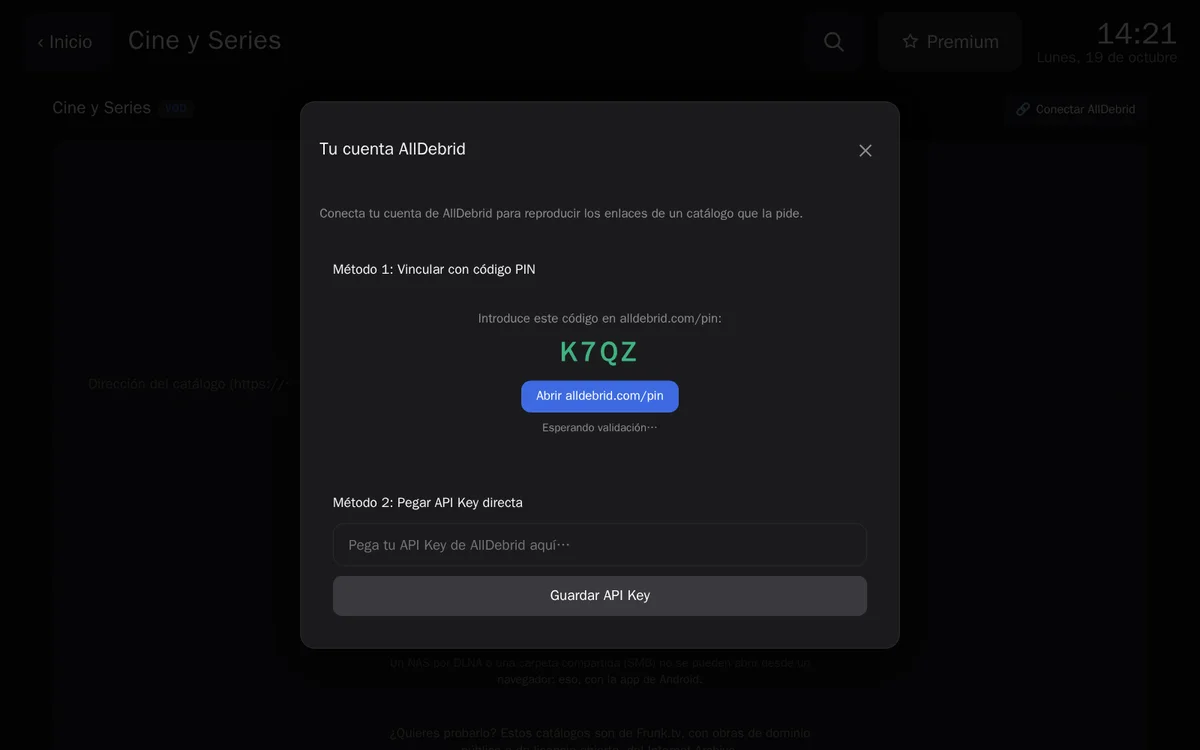
The other way, if you prefer: on alldebrid.com, in your account, create an API Key (in the API keys section), copy it, paste it into «Paste your AllDebrid API Key here…» and tap Save API Key. It is convenient on a computer; in the car, the code is better.
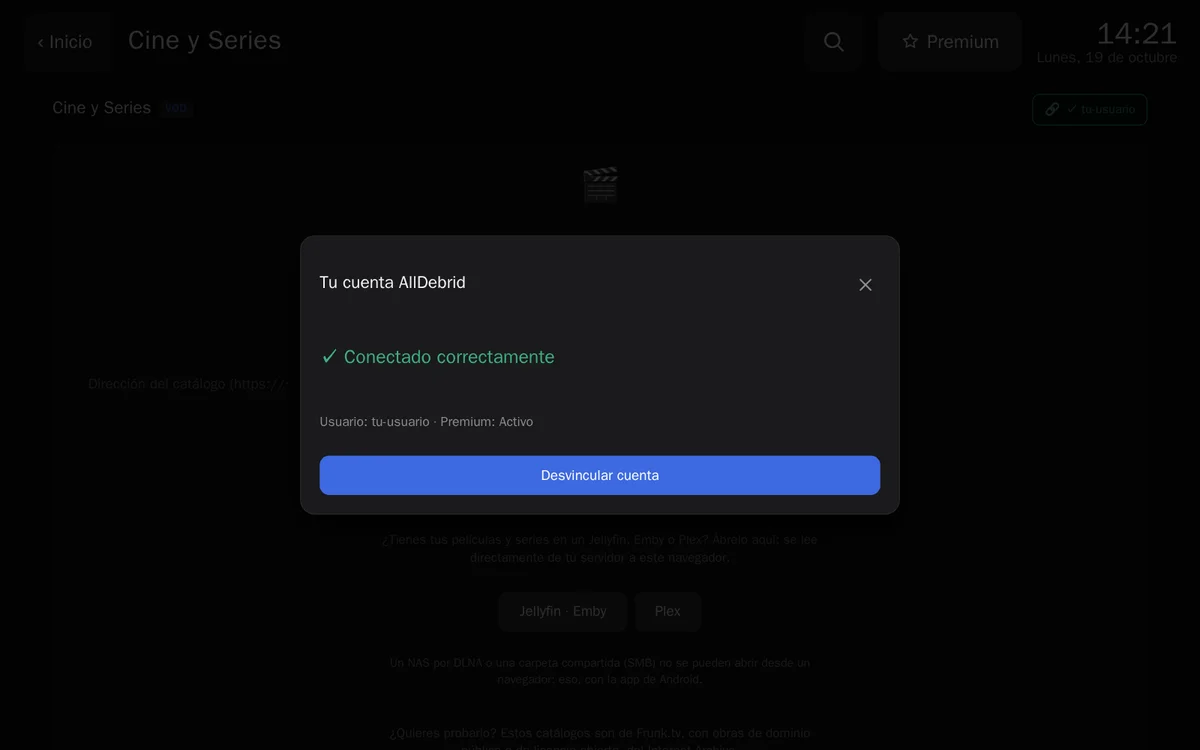
On the details page of a title that plays with your AllDebrid account, the button is Play with AllDebrid; without a connected account, it shows 🔒 Connect AllDebrid to play, which opens this same window. To remove the account, tap your username at the top and Disconnect account.
In the app
- On your phone, tap More and AllDebrid; on TV, AllDebrid in the left menu.
- Tap Connect my account. The app shows a code and the link to alldebrid.com/pin; on TV, also a QR code to open it with your phone.
- Go to alldebrid.com/pin with your account, enter the code and approve it. The app waits («Waiting for you to approve it…») and connects on its own.
- You will see «Connected as …», with your AllDebrid library organized into movies and series.
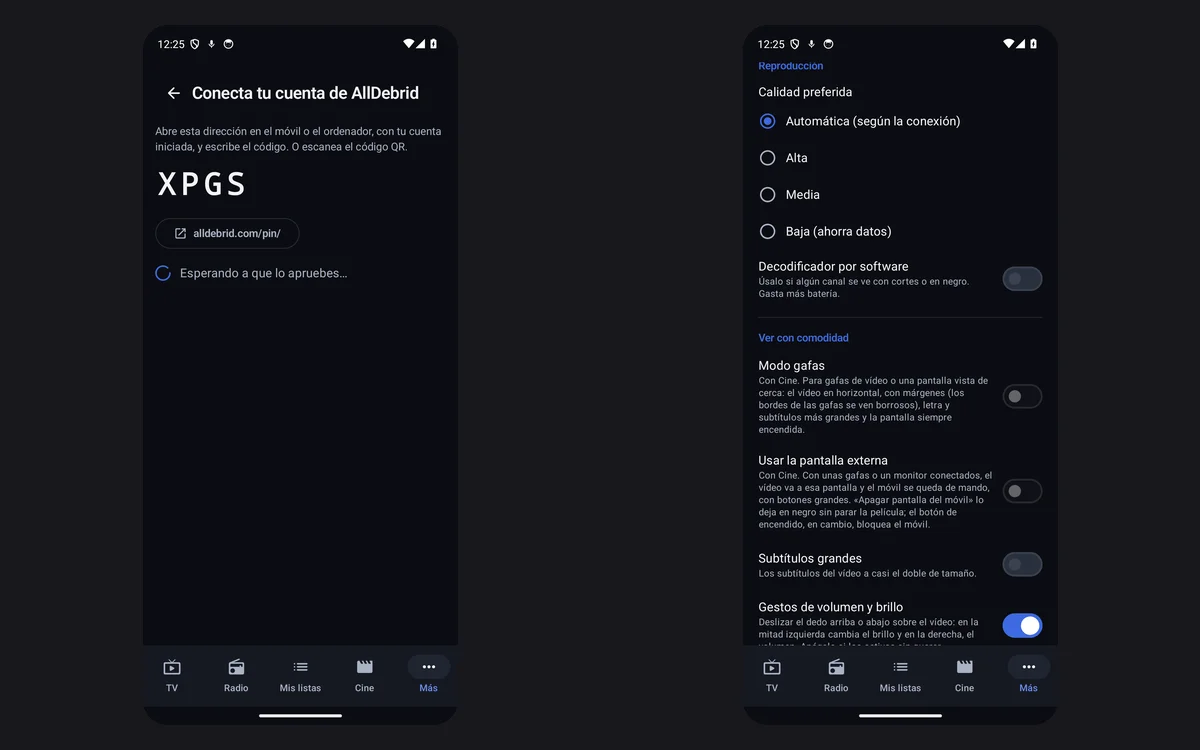
The code expires after ten minutes: if it does, request another one. To remove the account, Disconnect (on phones, the button at the top of AllDebrid): this deletes the session and the library saved in the app.
In the Android app
The app does everything the web hub does and more: opens your NAS, downloads for offline viewing, and has modes for video glasses or an external screen. If you don't have it yet, download it here.
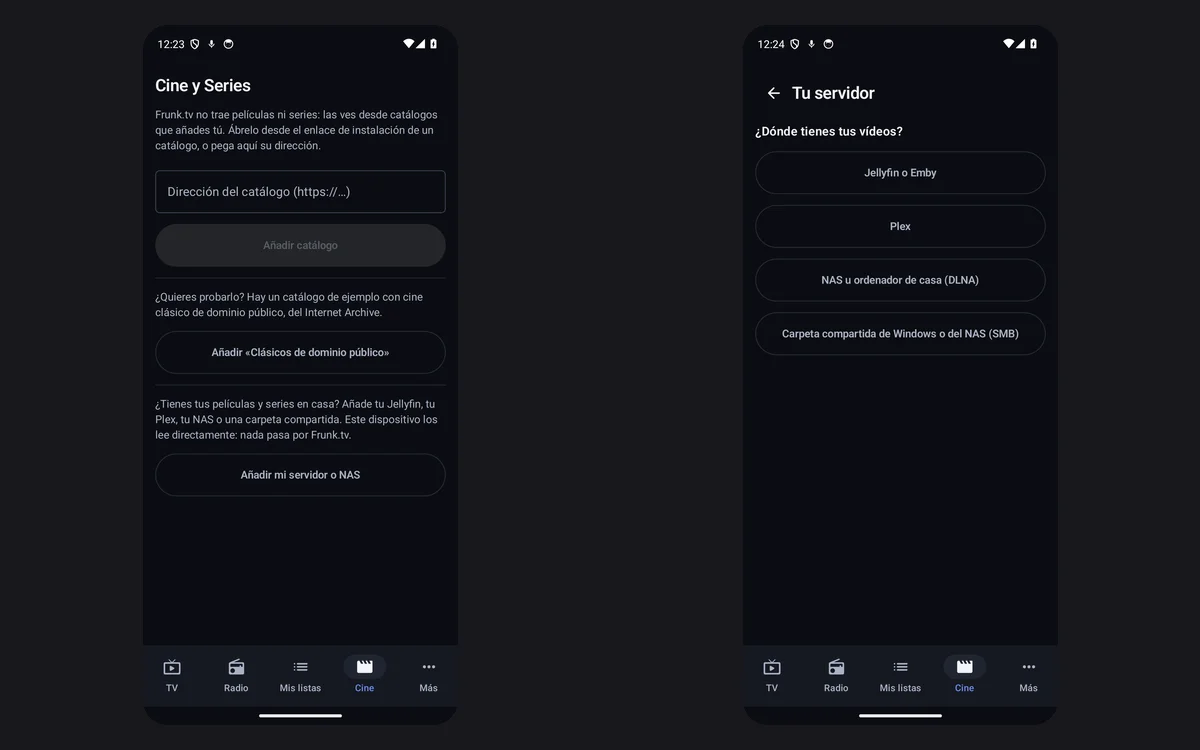
- A Frunk.tv catalog: tap Add “Public Domain Classics”.
- A catalog from its link: paste its address into «Catalog address (https://…)» and tap Add catalog, or open its install link on your phone: it opens in the app. On TV, Send it from your phone shows a QR code, just like in the car.
- Your server or your NAS: tap Add my server or NAS and choose Jellyfin or Emby, Plex, NAS or home computer (DLNA), which searches your network, or Windows or NAS shared folder (SMB).
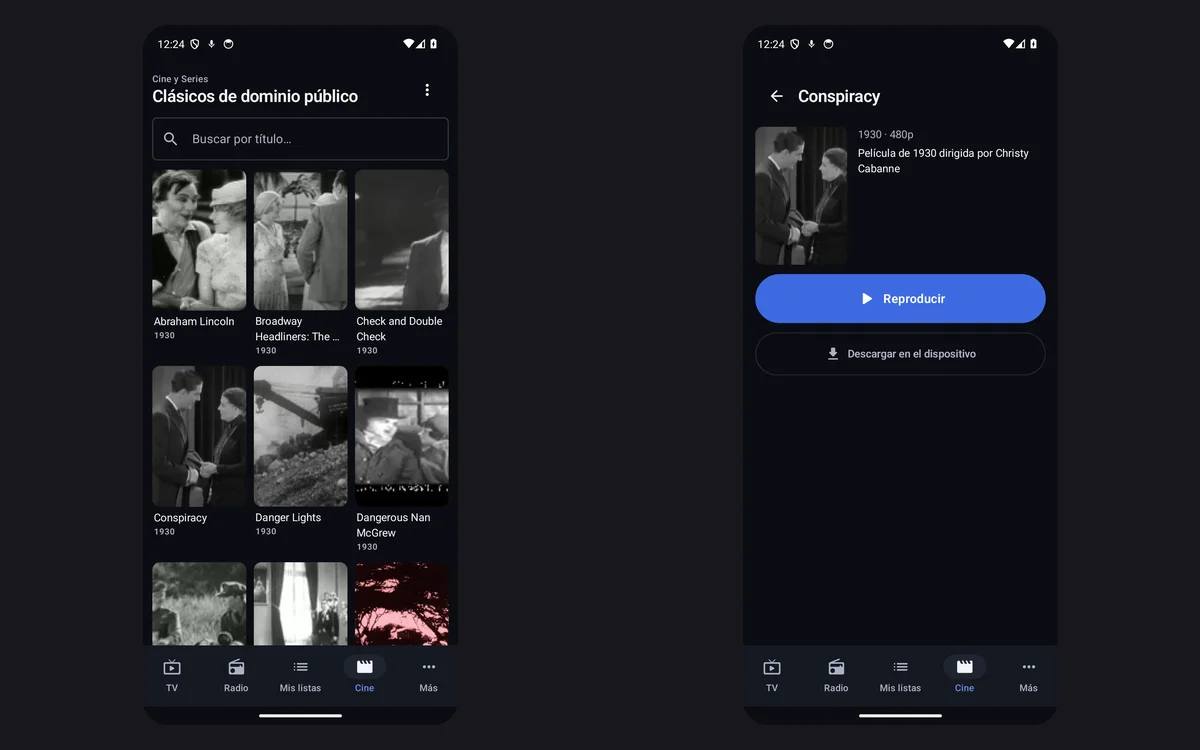
On the details page, Play, or Resume at … and From the start if you already started watching. «Continue watching» keeps your place, just like on the web.
What is free and what comes with Cine
Free, on the web and in the app: all catalogs, without limits (Frunk.tv's and the ones you add by their link), your AllDebrid account, one server of yours at home, «Continue watching», large subtitles, volume and brightness gestures, and volume above maximum.
The free server is the first one you added (Jellyfin, Emby, Plex, your NAS or a shared folder). «At home» means on the same network as the server, as the server itself counts it: on mobile data or in the car's browser, no. If you remove that server, the next one becomes the free one. The servers you had already added before 21 October 2026 stay free in that browser or that app, all of them and anywhere.
Cine is the Movies & Series subscription, like Infuse Pro or Plex Pass: it charges for what Frunk.tv does with your own servers and in the app, never for catalogs, AllDebrid nor what is in any source:
- More servers of yours, besides the free one.
- Watching them away from home: in the car, on mobile data or from another network.
- Download to device, to watch offline (in «Downloaded»).
- Glasses mode, under Settings, «Comfortable viewing»: for video glasses or a screen viewed up close, with landscape video and margins, larger text and subtitles, and the screen always on.
- Use external screen: with glasses or a monitor connected, the movie plays on that screen and the phone becomes a remote, with large buttons to skip forward, skip back, audio, subtitles, speed, and locking it.
The Cine subscription is not on sale yet: its price will be announced beforehand in the Telegram bot and group. Anyone who purchased premium by 31 October 2026 already has Cine, at no extra cost (legal notice).
If something doesn't work
- «This browser cannot display the picture for this video»: the car's browser does not play some formats (for example, HEVC or certain audio tracks). If you use Jellyfin, Emby or Plex, let your server transcode the video; or watch it in the app.
- My server won't open in the car: watching it in the car comes with Cine, and the server must be reachable via https from the internet, not just on your home Wi-Fi. An http-only server opens in the app, not on the web.
- It says I'm away from home and I'm at home: connect to your home Wi-Fi, without mobile
data. If you access your Jellyfin or Emby through a domain, the app checks that you are on its network by
reaching its local address or searching for it on the network (port 7359 via UDP; in Docker it must be
published). If it doesn't find it, add the server with its home network address (for example,
http://192.168.1.10:8096). - AllDebrid won't play a title: check in your account window that AllDebrid shows it as active and that the file is still in your account. If the title has multiple links, Frunk.tv tries the next one automatically.
- The AllDebrid code has expired: close the window and request another one.
- Something else? Ask in the Telegram group.
Frequently asked questions
- How do I connect my AllDebrid account?
- In Movies & Series, tap «Connect AllDebrid» (in the app, «More», «AllDebrid» and «Connect my account»), request the code and enter it at alldebrid.com/pin while signed in. You can also paste an API Key from your AllDebrid account.
- Does Frunk.tv include movies or series?
- No. Movies & Series plays the sources you add yourself: your Jellyfin, Emby or Plex server, your NAS, a catalog from its link, or Frunk.tv catalogs, with public domain or open-license works.
- Does it cost anything to use AllDebrid on Frunk.tv?
- No: connecting your AllDebrid account is free on Frunk.tv, with no Frunk.tv premium or Cine needed.